Steps:
Navigate to app.entresoft.com
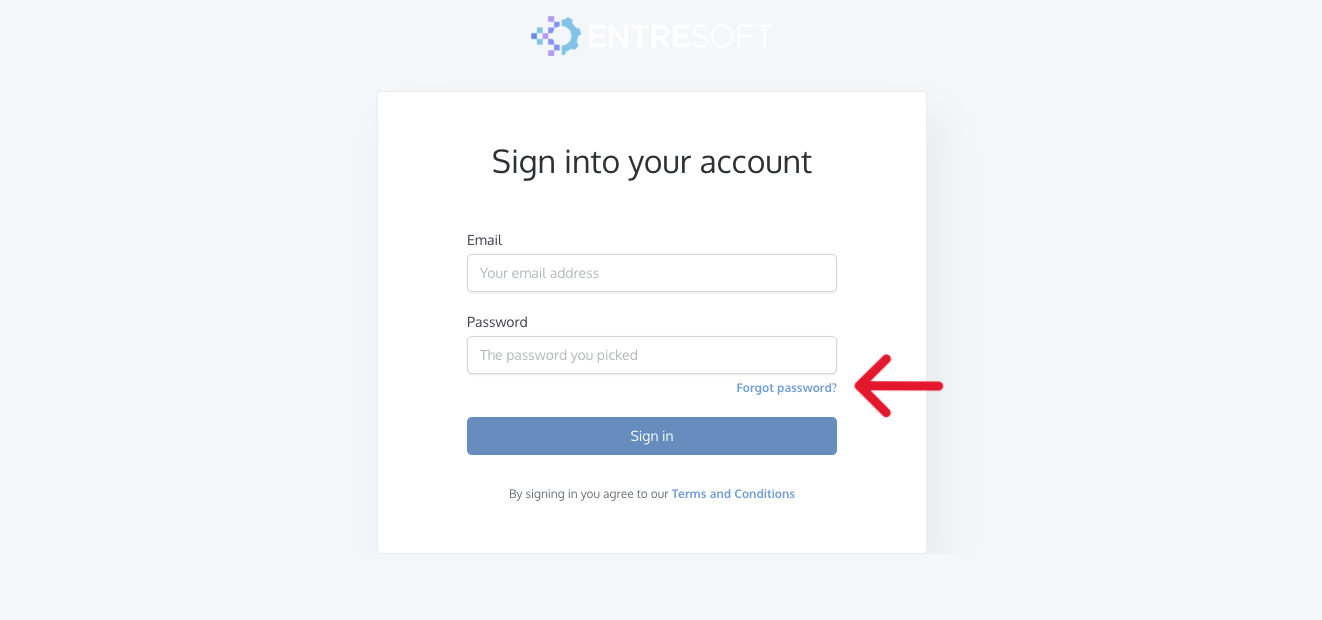
Click on 'Forgot Password'
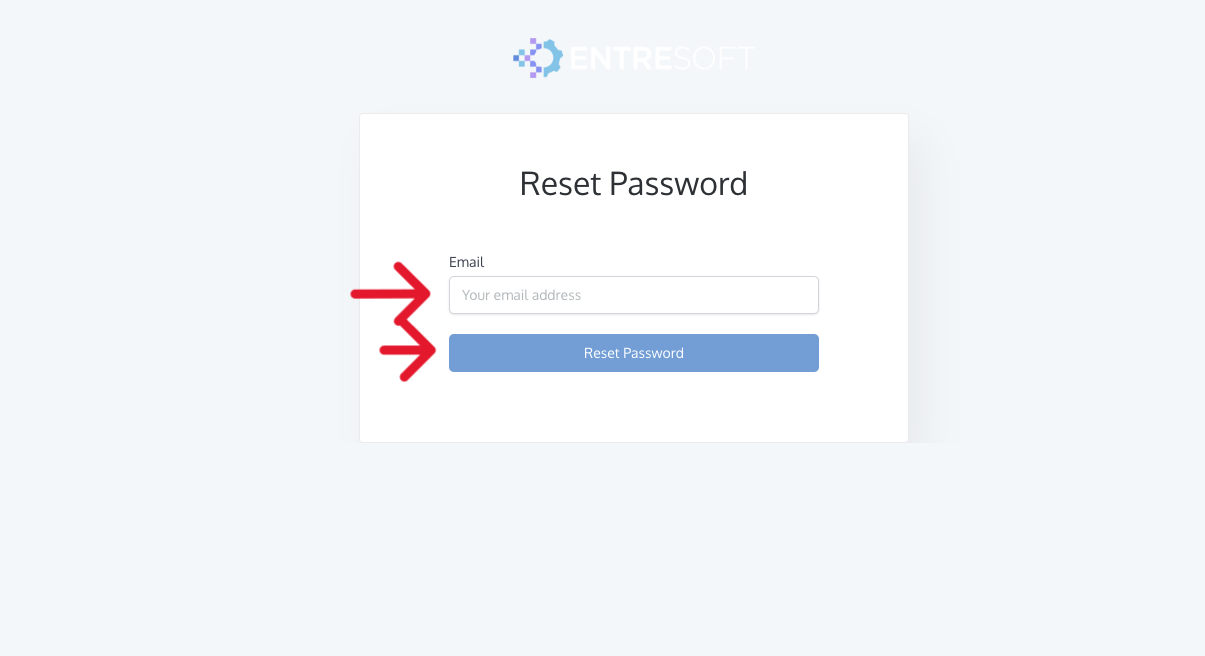
Enter your email (the one you used to sign up with ENTRE unless you changed it) then click on 'Reset Password'
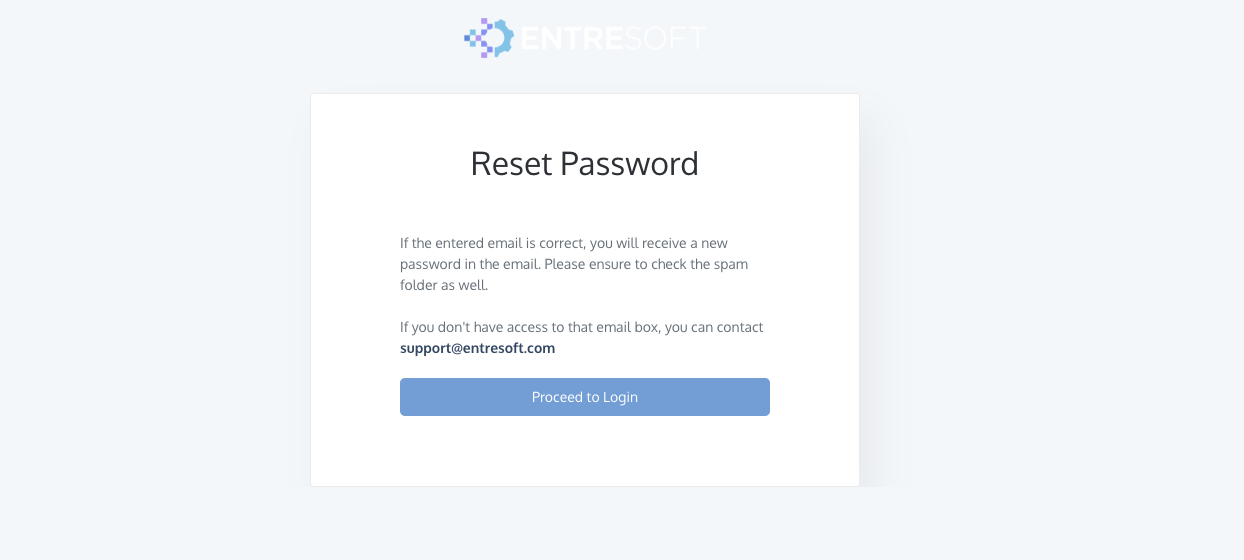
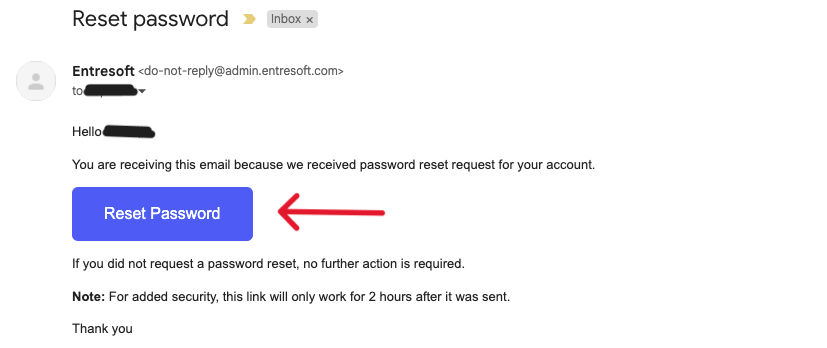
Check your email and click 'Reset Password'
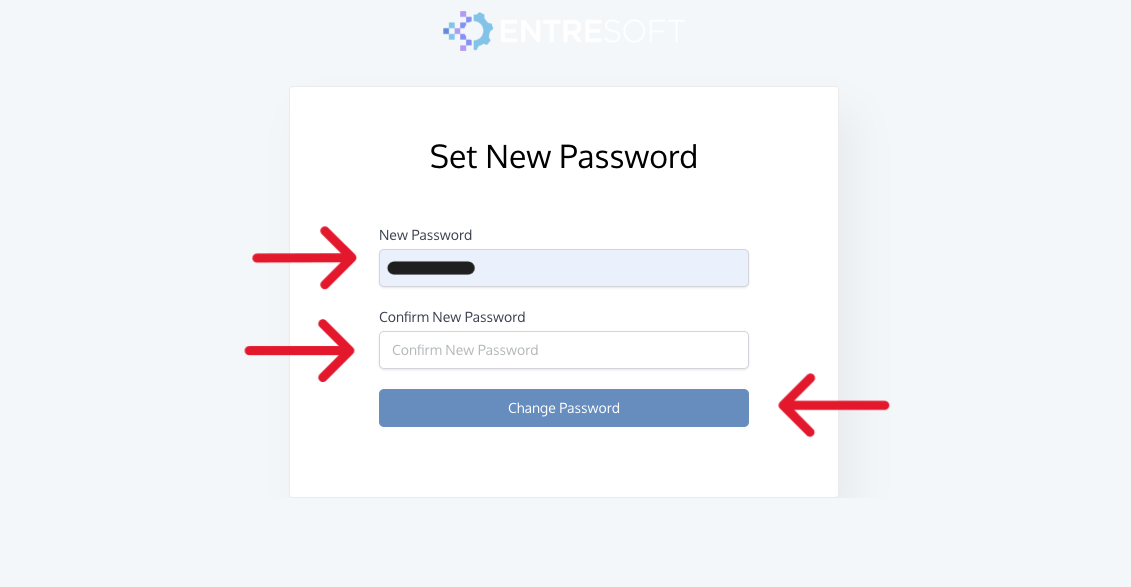
Enter your new password and confirm your new password
- Once you've confirmed your password, click on 'Change Password' to save your changes
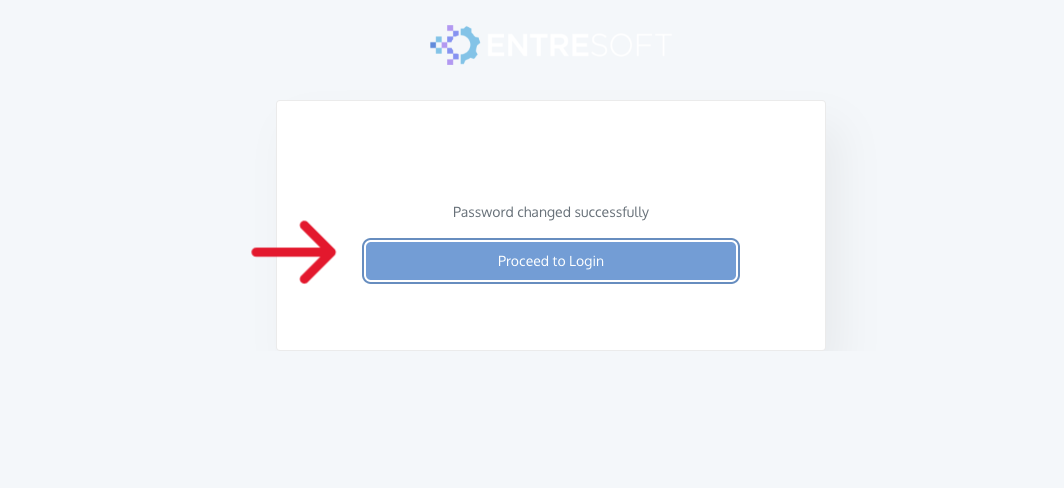
- You can now proceed to log into app.entresoft.com with your NEW updated password!
When setting up a new password, aim for a password that is at least 8 characters long and includes a mix of uppercase and lowercase letters, numbers, and special characters. Avoid using easily guessable information like birthdays or common words.
Frequently Asked Questions (FAQs):
Q: I'm not sure if I have an Entresoft account or not, what do I do?
A: If you don't have an Entresoft account or are not sure, please email support@entresoft.com so our team can assist you!
Q: Can I use the same password again?
A: It's advisable to create a new password for security reasons. Avoid using previously used passwords.
Q: How long does it take to receive the password reset email?
A: Usually, the email is sent within a few minutes. Check your spam folder if you don't find it in your inbox.
Q: I didn't receive a password reset email, what should I do?
A: Make sure to double-check your spam/junk folder if you don't find it in your inbox. If you still can't find it, try requesting another password reset or contact support@entresoft.com
Don't forget to either write down your new password or keep it in a safe place that you'll remember for next time!
Still Need Help?
Please contact Entresoft Support via email: support@entresoft.com
Was this article helpful?
That’s Great!
Thank you for your feedback
Sorry! We couldn't be helpful
Thank you for your feedback
Feedback sent
We appreciate your effort and will try to fix the article